
How to Record a Podcast Remotely Without Losing Audio Quality
The biggest quality drop in remote podcast recording comes from relying on internet call audio instead of separate local tracks. Here's the setup that actually works.
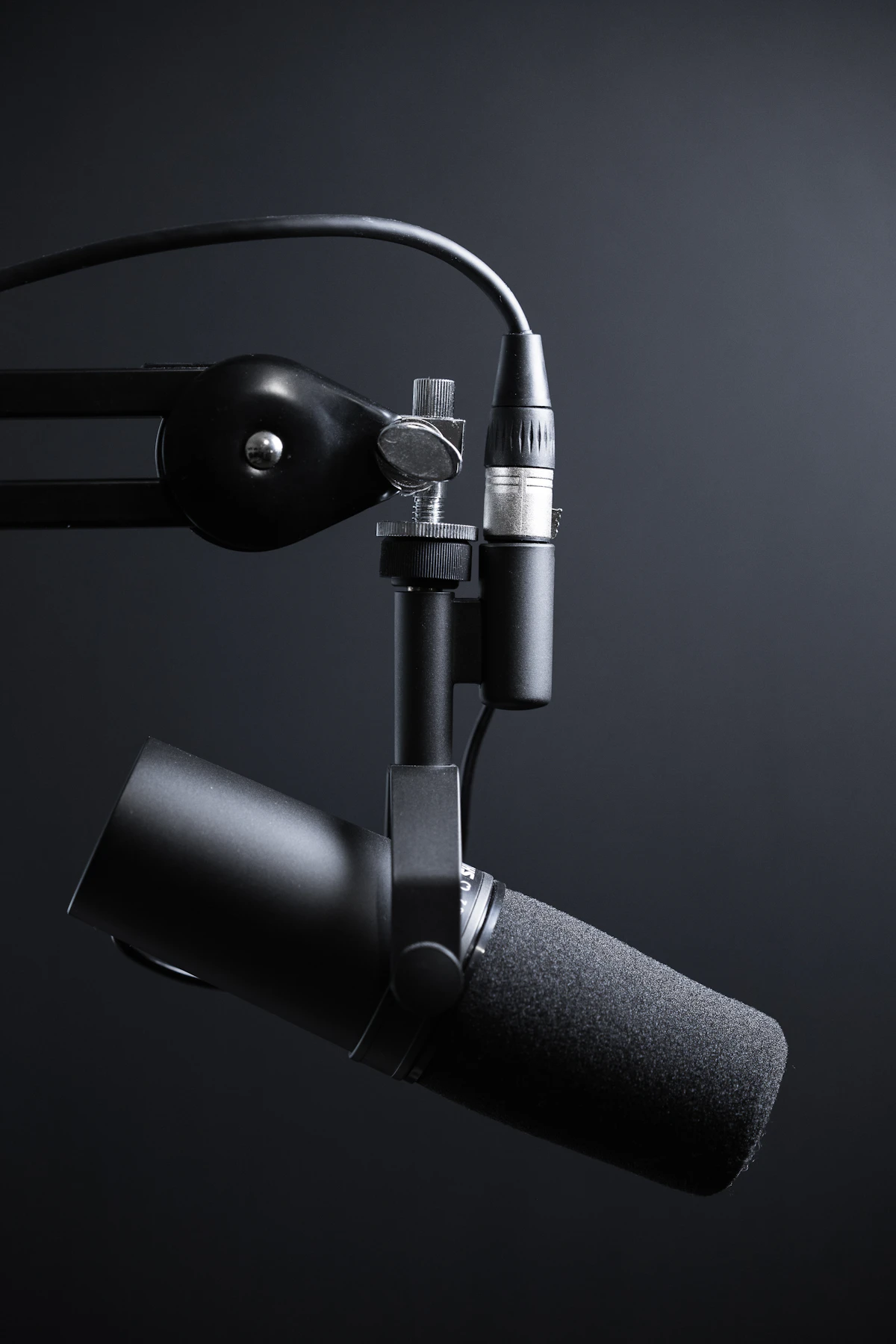
The easiest way to record a podcast remotely without losing audio quality is to use a browser-based recording tool that captures each speaker separately, then make sure every participant has a decent mic, headphones, and a quiet room. The biggest quality drop usually comes from relying on internet call audio alone instead of recording clean local tracks.
Everything else is secondary. This guide walks through the setup, the workflow, and the mistakes that actually cost you quality so you can stop guessing and get a clean recording.
For better remote podcast quality:
The easiest way to record a remote podcast today
Use a dedicated browser-based podcast recording tool. Send your guest a link. Record each person separately. That's the whole setup.
You don't need a studio. You don't need special hardware beyond a decent mic. What you do need is a tool that records each participant's audio on their own machine rather than capturing the mixed internet call. That single change produces better results than any microphone upgrade you could make on top of a bad recording setup.
Tools like Iris handle this entirely in the browser. There's nothing for your guest to install. You create a room, share the link, and hit record. The files upload automatically when the session ends.
Why remote podcast audio quality goes bad
Most remote podcast quality problems come from one of a small number of sources. Once you know what they are, they're easy to avoid.
Recording the call audio instead of local tracks
This is the most common and most costly mistake. When you record a video call in Zoom or Google Meet, you capture the audio that came through the internet: compressed, affected by packet loss, and mixed together with everyone else on the call. You have no way to clean up one person's audio without affecting the others. Dedicated recording tools solve this by recording each person's audio directly on their device, before it ever goes through the internet.
Guests using laptop speakers
When a guest's mic picks up the audio from their laptop speakers, it creates an echo loop that's almost impossible to remove cleanly in editing. Headphones break the loop entirely. This is non-negotiable for any guest you care about sounding good.
Weak or unstable internet
On a standard video call, poor internet directly degrades the recording. With local track recording, internet quality affects only the live call experience, not what gets captured. A guest on a shaky connection still produces a clean audio file because it was recorded locally on their end.
Poor mic choice
Built-in laptop microphones pick up everything: fan noise, keyboard clicks, room echo, and the low hum of the machine itself. A USB microphone sitting 20 to 30 cm from the speaker's mouth fixes most of this for under $100.
Untreated or noisy rooms
Hard floors, bare walls, and open spaces create reverb. Air conditioning, traffic, and open windows create background noise. Guests recording in a small room with soft furnishings — a bedroom with clothes in the closet, for example — will sound significantly better without any additional treatment.
Wrong browser or outdated software
Browser-based recording tools work best in Chrome or Edge. Safari and Firefox have inconsistent support for the audio and video APIs these tools use. Guests who join from an outdated browser or an unsupported one can run into permission issues, poor quality, or dropped connections.

Local tracks vs internet call audio
This is the most important concept to understand about remote podcast recording, and it's also what separates purpose-built tools from general video call apps.
✗ Internet call audio (Zoom, Google Meet)
- ✗ Audio compressed for call transmission
- ✗ All speakers mixed into one file
- ✗ Dropouts and artifacts if connection is weak
- ✗ Can't isolate or fix one person's audio
- ✗ Quality ceiling set by weakest connection
✓ Local tracks (Iris, Riverside, Zencastr)
- ✓ Full-quality audio recorded on each device
- ✓ Separate file per person for editing
- ✓ Connection quality doesn't affect the recording
- ✓ Fix or clean up one track without touching others
- ✓ Much less cleanup needed in post-production
When a tool records local tracks, the internet connection is used for the live conversation but not for the recording itself. Even if a guest's connection drops and recovers mid-session, the captured audio on their machine is unaffected. That's why this one change matters more than anything else in a remote recording setup.
What you need for good remote podcast quality
The equipment bar is lower than most people expect. You don't need a professional studio setup.
USB microphone
Entry-level USB mics cost $50 to $100 and sound dramatically better than any built-in laptop mic. The Blue Snowball and Audio-Technica AT2020USB are common starting points.
Headphones
Any wired or wireless headphones that keep sound out of the mic. Even earbuds work. The only requirement is that the guest isn't using laptop speakers.
A quiet room
Bedroom, home office, or any small room with soft furnishings. Close the windows, switch off fans, and record away from hard walls where you can.
Stable internet and an updated browser
Chrome or Edge, kept up to date. A wired ethernet connection is better than Wi-Fi if available. Not strictly required, but it removes a variable.
How to record a remote podcast step by step
Choose your recording platform
Pick a browser-based tool that records local tracks. Iris, Riverside, and Zencastr all work this way. Avoid general video call apps if audio quality matters.
Send your guest a simple link
A good tool generates a single browser link. Your guest clicks it, allows mic and camera access, and they're in. No download, no account.
Ask your guest to wear headphones
Include this in whatever you send before the recording. Most guests don't know this matters until you tell them. Any headphones work.
Do a short sound check
Before you start recording, have both sides speak and listen back. Check that the right mic is selected, levels are reasonable, and there's no echo or obvious background noise.
Record and confirm local tracks
Hit record and confirm that the tool is capturing separate tracks per person. Let it run without interruption. Don't mute mid-recording if you can help it.
Wait for the upload to finish
Most tools upload files automatically after the session. Don't close the tab or window until the upload is confirmed complete. This is where recordings get lost.
Export and back up your files
Download the separate tracks and back them up before editing. Clean up audio if needed — with good local tracks, this is usually minor level adjustment rather than heavy noise removal.
Record your next remote interview in Iris
Send your guest a browser link. Record separate 4K tracks. Download and edit. Nothing to install.
The most common remote podcast mistakes
- Not telling guests to wear headphones. This is the single easiest thing to fix and one of the most common problems. Put it in your pre-recording email.
- Skipping the sound check. A two-minute check before recording catches 90% of problems before they become permanent. Once you're recording, you can't go back.
- Using Zoom and assuming the quality will be fine. It might be. But Zoom records the mixed call, not separate tracks. If one person sounds bad, both of you sound bad, and you have no way to fix just their audio.
- Not confirming browser permissions. Guests who haven't used browser-based recording tools before may need to allow mic and camera access the first time. This takes 30 seconds but causes panic if it comes up mid-session.
- Closing the browser before the upload finishes. Local track tools upload files after the session ends. If a guest closes their browser tab as soon as they're done talking, the upload may be cut off. Tell them to wait until they see a confirmation.
- Overcomplicating the guest setup. Sending guests a 10-step technical guide before a recording is more likely to cause anxiety than prevent problems. Keep your pre-call instructions short: headphones, quiet room, Chrome or Edge, link.
Best tools for recording a podcast remotely
The short version (see the full comparison guide for more detail):
| Tool | Best for | Local tracks | Guest setup |
|---|---|---|---|
| Iris | Simple browser recording with easy guests | ✓ | Any browser, no download |
| Riverside | Feature-heavy production teams | ✓ | Link, sometimes app required |
| Descript | Recording plus editing in one workflow | ✓ | Link, sometimes app required |
| Zencastr | Audio-first web recording | ✓ | Any browser, no download |
| Zoom | Quick calls where quality isn't a priority | ✗ | App or browser |
Why Iris is a simpler way to record remote conversations
Iris was built specifically for the recording problem described in this article: you have a guest, you want clean audio and video, and you don't want to spend an hour on setup before every call.
The workflow is browser-based, which means your guest gets a link and nothing else. No app to install, no account to set up, no browser plugin to configure. Iris records each person's audio and video locally, uploads the files automatically, and gives you separate tracks per participant ready for editing. It does 4K video if you want it.
It doesn't try to be a giant all-in-one suite with built-in editing, hosting, and a cluttered production stack around the recording. The product is built around making the recording itself simple and reliable, which is the part that's hardest to redo if something goes wrong.
For interview podcasts, business shows, and anyone recording remote conversations that need to sound professional, that focus is worth a lot.
Guest prep checklist
Copy this into your pre-recording email:
- Wear headphones or earbuds (any kind)
- Find a quiet room with a door you can close
- Use Chrome or Edge if possible
- A USB mic sounds best, but a headset mic works too
- Click the link I'll send you — nothing to download
- Allow mic and camera access when prompted
- Don't close your browser until you see the upload complete
Frequently asked questions
Can I record a podcast remotely for free?
Yes. Iris, Zencastr, and Riverside all have free tiers with limits on recording time or quality. Zoom is free for calls under 40 minutes but doesn't record separate tracks. For most podcasters starting out, a free tier on a dedicated tool is enough to see whether the workflow fits before upgrading.
What is the best way to record a remote podcast interview?
Use a browser-based tool that records local tracks, send your guest a link, and do a short sound check before starting. The most important thing is capturing separate audio per person. Everything else is secondary.
Is Zoom good enough for podcasting?
For casual recordings where audio quality doesn't matter much, yes. For anything you want to sound professional, no. Zoom records the mixed call rather than individual tracks, so you can't fix one person's audio in editing without affecting everyone else.
Do I need separate tracks for a remote podcast?
You don't need them, but they make everything easier. Separate tracks mean you can adjust one person's volume, remove their background noise, or cut their section without touching anyone else's audio. It's the difference between having control in editing and not having it.
What should I tell guests before recording?
Keep it short: wear headphones, find a quiet room, use Chrome or Edge, click the link you'll send them, allow mic and camera access when asked, and don't close the browser until the upload finishes. That covers 90% of the problems you're likely to run into.
Ready to record your podcast?
High-quality remote recording — no downloads required.
Start recording free